Tuesday, October 13, 2009

ICM Class Notes, Handling Strings - October 7, 2009

Topics covered during class:
  • Learnings from the homework
  • Displaying, reading and parsing information from the web
Learnings from the homework
While reviewing this week’s homework we came across the use of double arrays (I could not find documentation for these types of arrays on the processing website). These arrays store two dimensions of data in a matrix that can be visualized as a spreadsheet or grid (check out the fig. a below). These arrays are the basis for image and video processing since to the computer a display is nothing more than a two-dimensional array.
  • Syntax for declaring double arrays: “arrayType [][] arrayName;”
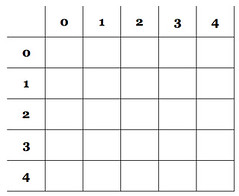
Fig a. Double Array Matrix
Double Array
Another interesting type of array is the ArrayList. These are a special type of array that is dynamically allocated. What this means from a practical perspective is that you can add and remove elements while the program is running. An array lists is a more efficient solution than appending normal arrays. However, if you know how many elements you will need before run time, it is most efficient to use a standard array.

This power comes at a price, to use data from these arrays you need to create temporary local variables that are often not necessary when using regular arrays. An array list also has a different set of function than a normal array (even the ones that perform the same functions have different names,).
  • Syntax for declaring an array list: “ArrayList arrayName;”
  • Syntax for creating the array list: “arrayName = new ArrayList();”
  • Syntax for adding element to array list “arrayName.add(new Class());” - the “new Class()” in this example can be replaced by a primitive date type such as int, char, etc.
Note that an Array list does not know what it is storing. So you don’t set a type for this array when you declare it. As described by the examples above, you need only define data type when you are adding an element to the array. This means that when you need to get an element from the array you need to define what type of data you will be extracting.
  • Syntax for extracting data from an array list: “Class tempVarName = (classOfArrayElement) arrayName.get(ArrayElementNumber);"
I am in no way an expert on array lists. Here is a short list of my own questions: Does the element from the array get changed when the temporary element that is linked to it gets updated? Can you add data elements of different types into an array list?

Displaying text information
During the second half of this week’s class we learned how to handle text - both how to display text and how to read text data from sources such as the Internet. I can’t wait to begin using these capabilities since data visualization is one of the areas that I hope to explore during my time at ITP. Let’s start with the basics and work our way up.

Definition of characters and strings:
  • Characters (chars) is a data type for typographic characters, such as ‘a’, ‘b’, ‘c’ , and you get my drift. Chars are represented as ‘single’ quotes.
  • Strings (String) is a data type that contains an array of chars. Unlike traditional arrays you don’t need to define the size of your string when you create it. Strings are represented by “double” quotes.
Adding text to your processing sketch: There are two ways to add text to a sketch in processing, loadFont() and createFont(). To use loadFont you need to convert the font into an image (vwl file) prior to compiling the program. Aside from this difference the process is quite similar. Here is a step-by-step description:
  1. Declare a variable of type PFont
  2. Define the variable usingloadFont() or createFont(). Do this during the sketch set-up because it requires a good amount of time.
  3. Use textFont() function to set the font type and size that you want to use for a single use of the text().
  4. Display text using the text() function. Method has several arguments: string, x and y coordinates, and width and length (optional).
So what are the benefits of each approach? loadFont() is a good solution when you are using a font that your users may not have installed on their own computers because the font will be embedded in the program. On the downside, since the font is converted to an image file at a specific size it can also get pixilated if it is used at a larger size than it was originally intended for.

On the other hand, createFont() enables to load a font at the moment the application is running. It also supports resizing of fonts without pixilation. However, if the person running the application does not have the selected font then the system defaults to an available font, which may look horrible with your design.

Capturing information from the Internet
For the most part, being able to take data from a website and using that data to impact a sketch takes a lot of detective work. The reason being you need to look at the source code from a website to understand how it is structured so that you can determine if there is a standard syntax that can enable your sketch to consistently find the information you want to capture. Here is an overview of the entire process

1. In practice this first step involves looking for identifiers within HTML/XML code that precede and follow the golden nugget of information you seek. It is always easier to use XML feeds than HTML code (and firefox is better to investigate XML than Safari). If using XML code you should leverage processing’s XML library. Once you have found the source on the internet from which you want to import data go to the next step.

2. Load the page into processing as a string using the loadStrings(URL) function. This method loads the document into an array of strings, each line is put into a separate element in the array. This means that when we are declaring a variable to import a text document we need to set that variable as an array – “string [] lines = loadString(sampleURL);”

3. Next use the join() function to put the contents of this array into a single string. The syntax for the join() function is “Join(string array to be joined, element to add between array elements)”. For example join(htmlPageArray, “ “) would join all the lines from a string array with a space between each element in the array.

4. Use string parsing functions described below to locate the data we want within an XML or HTML document/code. All of these methods tare part of the String class).

Parcing information from the Internet
First off you need to find the location of the data you are looking for by using the unique identifiers that you discovered during step one described above. Then you will use this information to extract data from the string. Remember that you can use a loop to look for multiple similar elements on a page. Here is the step-by-step:
  1. The function stringVar.indexOf(subStringSearch) returns the location within the stringVar where substring starts. If the subStringSearch is not found then it returns a -1 value. In order to find the start location of a sub string we need to add the length of the subStringSearch variable to value returned by this function.
  2. Once you have the location of the data use the stringVar.subString(start position inclusive, end position exclusive) to get the sub string that exists between the start and end point. It is important to always keep in mind how the start and end points of this function are handled differently.

Monday, October 12, 2009

Response to Understanding Comics by Scott McCloud

During this past week we explored the use of comics as a distinct medium of communication. As part of this exploration we read Scott McCloud's classic book - "Understanding Comics: The Invisible Art". This is a fascinating book that is well worth the read (and it's a quick one, comic book style). This post will focus on my response to this book.

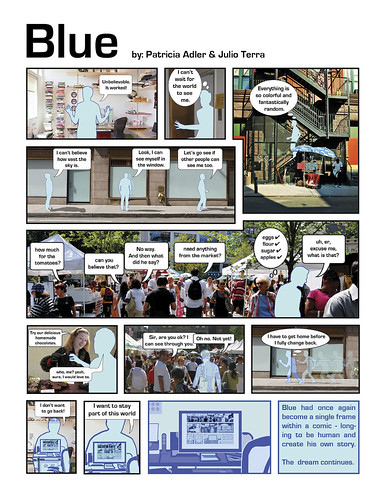
But before we proceed, this week we also had an assignment to develop a short comic. Here is a link to the comic that I developed with Patricia Adler along with an overview of the process we used to create it.

Understanding Comics - A Response
In his book, Scott McCloud makes the case that comics have their own language, which is distinct from purely symbolic or visual communication arts such as literature, photography and painting. He then explores the main characteristics of comics, such as use of various types of symbols, the relationship between space and time, reflection of motion and emotion in the use of lines, and the reader's role and ability to "read between the lines".

The foundation of Scott McCloud's argument is that the term comics refers to a form of art, loosely defined as sequential visual art, that needs to, and should, be understood separately from the content that populates. This distinction is important because in the US comics have often been a vehicle used primarily for kids or low-brow content. Scott's book is an example of a comic that features content that is largely academic in nature. Best of all it delivers this information in a fun and easy to understand manner.

Comics leverage an extremely rich and diverse ecosystem of symbols to communicate information. These symbols range from fully abstract elements, such as words, to real-looking elements, such as detailed drawings, to abstract visual elements, such as lines and shapes. These elements can be recombined in a many different ways with an equally diverse number of potential outcomes. For example, to help a readers identify with a character, writers often depict that character with a level of abstraction that is greater than the background and other elements of the story (think Tin Tin).

The relationship between time and space in a comic book is fascinating. In some ways it is very straightforward; for example, the physical distance between two elements in a story almost always reflects the temporal difference. However, the past and future are always "present" in the current moment in a way that can be accessed visually - in a more direct way than in any other medium.

This provides comic authors with interesting storytelling opportunities. McCloud gives a great example using of a simple cartoon where the main character, who is located on the top row of frames, steals money from his future self, who is located in the frame right beneath.

Another interesting aspect of comics that McCloud points out is how they are able to successfully portray motion using static images - and the importance of motion. The ability to convey motion was one of the things that attracted me to the aesthetic of comics when I was growing up (though I never realized that until now). I had a special fascination with Japanese manga-style cartoons that played in Brazil in the early 80's. Comic artists seem to be true experts in this realm.

At the end of the day comics work because of the way the human mind works. We are meaning making machines. We see forms created from lines and colors on a page and we translate that information into meaning - who hasn't seen a human face in a power socket? We all know that we make meaning out of what we see, but equally important we make meaning about what we don't see as well. That is why the area between the frames in a comic book are so important. Ultimately, the story is constructed in a reader's mind according to how his/her mind creates closure between the contents of the various frames that make up a story.

Blue - The Story

Today I will share a short comic that I composed with Patricia Adler for my Communication Lab class. I will also describe the development process for creating this piece, from ideation through production. In short, this comic was the fruit of a brainstorming session and was produced using illustrator, photoshop and indesign. It features pictures from flickr coupled with some of our own.
Blue
Ideation
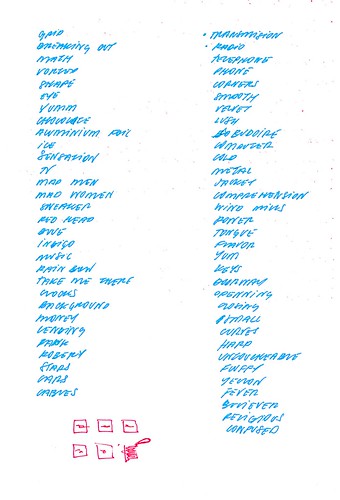
To come up with an idea for the comic, Patricia and I held a short brainstorm. During this 20-minute session we used free-association to generate a list of seed words to serve as inspiration for our story. Once we jotted down about 50 different thoughts we stopped developing new ideas and begun a grouping exercise. Here is a scan of the notes from our brainstorming - good luck reading my hand-writting.
Blue Brainstorm Notes
This phase of the process is focused on identifying interesting themes, patterns, or inspiration that arises from the list of words. We identified the following main themes from our list: food and sensations, soft versus hard, transitions and passages, madness and sickness. During this process Patricia brought up a desire to work with colors. This, coupled with a momentary fascination with the grid paper on which we was taking note, led us to the inspiration for our story.

The initial idea for the story was about a colored shape that dreamt of being human. We liked the idea of an inanimate and abstract object, such as a shape, to be able to dream of being human. Once we agreed to pursue this area we started focusing on developing an actual story. We continued to develop this idea by exploring the notion of a square on a grid on a notebook that dreams of being human, to finally arrived at the place at which we ended up - the story about a frame from a comic that longs to be human.

We then worked on coming up with a short description of each frame of the story. This is where Scott McCloud's book was most helpful. It helped guide many of our conversations about how to manage time and craft the representation of our characters. At the end of this phase we also defined what source materials were needed, such as photo needs and copy.

Production
The first thing we did was to produce this comic was to look for pictures on flickr that met the requirements of our frame descriptions. After a few hours of searching for photos we determined that we would need to take our own pictures for the main character, which we did.

Once we found most of the pictures we needed we used the pen tool on Adobe Illustrator to create an outline of the main character for each frame. This process was timing consuming but enjoyable (at least for me). The most difficult images to create were the outlines of the objects that are behind Blue on the frames in which he becomes transparent - these were also created using Illustrator.

The next step in the process was to put together the final image compositions by retouching the pictures (thanks Patricia for doing most of the work here) and including the talk/thought bubbles and text boxes. Photoshop was used for all of this work. Once all the images were ready we InDesign to create the final layout. We had to go back and forth between Photoshop and InDesign to adjust the pictures to fit the visual and text in the layout clearly.

It is important to note that even though I am dividing the following activities into a "production" stage, we continued to iterate through changes in the storyline until the last day. Spending sufficient upfront time making sure our idea was solid helped us avoid rework during production.

Image Credits
- Frame 1 and 10 - Office picture - Jeremy Levine
- Frame 3 - Building with stairs picture - Moriza
- Frame 4 and 8 - Man walking down street - Julien's
- Frame 5 - Farmer's market picture - Ed Yourdon

Friday, October 9, 2009

Creating a Simple Arduino Controller for Processing Sketch

This week I finished my second gadget – a joystick for the bat invaders game that I have been developing in ICM class. The process that I used to create this device can be broken down into the following steps:
  • Define functionality requirements for the joystick
  • Identify components that can meet these requirements
  • Connect and test the components on the Arduino
  • Get Arduino and Processing to work together
  • Update Processing code to work with joystick
Here is a video of the controller in action. Below you will find a more detailed overview of my development process along with details regarding the issues I encountered and how I solved them.


The work related to defining functionality requirements was straightforward and easy. Since the game had already been developed I knew exactly what I needed: two buttons to enable players to shoot bullets and to reset the game, and a controller that enable players to move left and right on the screen. The speaker was added towards the end of the development process hence it was not included in the original requirements definition.

Once these requirements had been defined it was easy to select the appropriate NC (normally closed) push buttons. The solution for controlling the left to right movement of the shooter bat was more challenging. I considered using a potentiometer, force sensors, a joystick switch (made of two potentiometers), and a double throw switch. In the end I opted for the double throw switch due to cost and usability considerations.

Connecting and testing the components was pretty straightforward. I made sure that all core components were working before moving forward with attempting to link Arduino to Processing. To determine which pins from the DTDP (double throw, double pole) switch needed to be connected to the power and input pin on the Arduino I used the continuity test on the multimeter. When I first connected this switch to the Arduino I encountered erratic input readings because I had forgotten to add resistors – this problem was quickly and easily fixed.

I did not test the speaker during this step in the process because I had not decided to add the speaker to the project yet. Once I decided to add the speaker I tested it using a slightly modified version of the code from last week’s tone lab. Then I played around with the tones in order to find two that were sufficiently different to identify bullet shots and bat deaths.

The next step was the toughest part of the entire process, getting Arduino and Processing to communicate with one another. Before starting to work on this project I had already made a failed attempt to use switches on the Arduino to control software developed with processing. With the help of Igal, and ITP colleague, I was finally able to get these two components to communicate analog input and output data (here is a link to a post on Igal’s website where he outlines the steps for making this happen).

Unfortunately, this was not the end of my woes. Though I was able to get analog input and output working I encountered another roadblock when I tried to create an Arduino sketch that would support digital input and output. To solve this issue I hooked up the digital switches to the analog input pins and used the analog values to drive digital behavior - e.g. if the input read higher than 100 then the switch was considered to be in the “on” state; otherwise it was considered to be in “off” state.

When I decided to add speakers as an output device I had to make updates to the Arduino sketch. In order to get this to work I had to take the following steps: (1) add the Tones library to the Arduino sketch; (2) create an object from the Tones class; (3) add code to the analogWriteCallback() function to play the appropriate tones when selected values are passed to the Arduino.

The final integration step was easy now that I had completed all of the pre-work described above – it took me under 30 minutes to get it all working properly.

I’ve posted the Arduino code below for your reference. Please note that the Processing code is available only on the Open Processing website. Also, I’ve commented out all of the elements associated to serial communications since the Open Processing site will not run Java applets that include serial commands.

Arduino Code for Bat Game Controller
/* Supports as many analog inputs and analog PWM outputs as possible.
 *
 * This example code is in the public domain.
 */

// Firmata library allows us to communiacte with Processing, we need to include it
#include 
#include    

// variable that stores analogPin values
byte analogPin;
long unsigned playStart;
long unsigned interval = 500;
boolean playOn = false;

Tone noiseMaker;    // instance of the tone library

void setup() {

  pinMode(13, OUTPUT);
  Serial.begin(9600);
 
  noiseMaker.begin(9);
 
  // these are calls to setup Firmata for communication
  Firmata.setFirmwareVersion(0, 1);
  // here we attach the analog message funciton, for digital communication
  // we can create other message callback functions and add them here
  Firmata.attach(ANALOG_MESSAGE, analogWriteCallback);
  //bitrate, would be a good idea to have it same as in Processing
  Firmata.begin(115200);
}

void loop() {

  // check if Firmata library is loaded
  while(Firmata.available()) {
        Firmata.processInput();
  }

  // for all the analog pins in Arduino, send the data in each to our Firmata library
  // which we will access from processing
  for(analogPin = 0; analogPin < TOTAL_ANALOG_PINS; analogPin++) {
        Firmata.sendAnalog(analogPin, analogRead(analogPin));
  }

}

// function that handles all the analog call backs
void analogWriteCallback(byte pin, int value)
{
    pinMode(pin,OUTPUT);
    if (value > 3000) {
      noiseMaker.play(value, 5);
    } else {
      noiseMaker.play(value, 25);
    }
  }

Wednesday, October 7, 2009

Intro to Physical Computing – 4th Class

During today's class we reviewed a few of the fantasy machine ideas and then covered how to hook up new, and more complex, output components. Below I have focused providing an overview of how to generate sound and hook up a servo motor to the Arduino.

Hooking up Speakers to the Arduino.
It is possible to use the Arduino to generate sound. Of course, the quality of the sound generated by the Arduino chip is mediocre because it only has an 8-bit processor. There are two main ways that the Arduino can be used to generate sound:
  1. Using analogOutput() with the standard library
  2. Using functions from the tones library
1. Using analogOutput() and standard library
If you hook up a speaker to an analogOutput, then the change in analog output will only change the volume. The reason being that the analogOutput function changes the duty cycle, but not the frequency – the only thing that changes is the length of time between the generation of each sound.

2. Using functions from the tones library
Using the tone library we can set-up any analog sensor to modulate the frequency of sound generated by the Arduino. To use this library, you must first download and install it from here. To install it just save these files to libraries folder in your sketchbook folder. Once installed this library enables you to easily play a wide variety of musical notes (here is a list of the supported notes).

Since analog sensors are limited to generating input between 0 – 1023, one must use the map function to convert the analog input to support a wider range frequencies widely. In class we mapped the output range to between 20 and 15000, as this is roughly the range that human beings can hear distinguish.

Hooking up a Servo Motor to the Arduino.
Servo motors require a lot of current (amps). Therefore, we always need to run it using the direct 5v power supply rather than attempt to power the motor directly from the Arduino pin as we have done with other output components (e.g. LEDs). There are two ways to use the Arduino to control a servo motor:
  1. using digitalOutput() with the standard library
  2. using the servo library (more common approach)
(1) Using digitalOutput() and standard library
Servo motors are always controlled using digital output. The length of the digital pulse that is delivered by the microcontroller determines the extent to which the motor turns (that is why we are able to use a digital pin to control what seems to be an analog function).

Each servo motor model has its own mapping of pulse-length to turn-ratio. Therefore, we always need to test servo motors to determine the appropriate mapping. Another important consideration is the need to make sure that each pulse is separated so that the servo motor can accurately read the length of each pulse.

(2) Using the servo library
The servo library is a standard Arduino library so there is no need to download it from the internet. That said, we still need to include the library into our sketches - below I provide an overview of how to add a library to an Arduino sketch. When using this library, the commands to control the servo motor are greatly simplified.

Adding and Using Libraries
When we use functionality from an extension library we need to add the library to our sketch by using the "#include" command at the top of our code. This informs the compiler that the sketch uses functionality that is defined in that library. Since the functionality from most libraries is encapsulated in classes, we usually need to create an object of a given class in order to access the functionality provided by that class (e.g. servo myServo;). Most of these classes have mandatory functions that need to be called during the set-up portion of the sketch (e.g. myServo.attach() and myTones.begin()).

It is important to keep in mind that different libraries are sometimes incompatible. For example, it is troublesome to use the servo and tones library together because they both attempt to control the Arduino timer. Some libraries do work well together, so you just need to make sure to check for compatibility before tearing out your hair because your sketch is not working.

Miscellaneous
Changing the Top Level of the Range for Arduino: the aRef pin on the Arduino board enables one to change the standard voltage level that Arduino uses as the top of the range for measuring analog input (e.g. if we wanted to bring it down from 5v to 3v).

Interesting/Cool Website Links: The Flying Pig is a UK site that has a lot of diagrams of various different movements, motions and mechanisms. It is a great resource when trying to figure out what kind of motor would be best for specific endeavors.

Physical Computing Lab: Creating Sound and Movement

The focus of last week's Physical Computing lab was to learn how to use more complex analog  actuators that can produce sound and motion. This four-part lab included: (1) set-up and testing of two different configurations for working with a servo motor (one using the servo library, the other sans the library); (2) set-up and testing of two different sound generating sketches.

All of these activities (except for the first servo lab) required the use of special libraries, namely the servo and a tones libraries. Here is a link to the detailed lab descriptions (servo | sound). Below you will a video of the fruits of my labor, followed by a brief overview of the issues that I encountered.


For the most part this lab was straightforward. I did not encounter issues with either of the servo labs. That said, I found it interesting to be able to understand how the servo motor works without an analog output and the library. Its position is determined by the length of time of the signals it receives. Unfortunately, there is no standard pulse-length to turn-ration relationship that holds true across different types of servo motors. To translate pulse length to turn ratio one must test different types of servo motors individually.

Another important consideration is that since servo motors rely on pulses, we must set a short interval between the "pulses" so that the motor can differentiate when one pulse begins and another ends (this sounds pretty obvious but I'm sure I will forget). To simplify our lives,  if you use the servo library you can avoid having to deal with all of the considerations that I listed above.

Moving on to the sound lab, here I did encountered one issue. When I first set-up the lab I was not able to get any sound to come out of my speaker - actually sound was coming out but it was not loud enough to be heard among the ruckus of the physical computing lab. Luckily, some other students had previously encountered the same issues. They pointed out to me that they resolved similar problems with their speakers by changing the resistor. Once this change was made the sound came out loud and clear.

Friday, October 2, 2009

Thoughts on Art in the Age of Mechanical Reproduction by W. Benjamin

Walter Benjamin’s “The Work of Art in the Age of Mechanical Reproduction” was written in 1935; a time when communism, facism, and capitalism were clashing forcefully, and when film had just risen to become a powerful and transformative means of communication and art. In this piece Benjamin focuses on analyzing the impact that mechanical reproduction has had on art. The main strand of his argument is that mechanical reproduction has transformed art from a phenomenon that is focused and ritual to one that is focused on politics.

If we define both politics broadly, to mean something such as “social relations involving intrigue to gain authority or power” (Princeton), then I am mostly in agreement with his view. That said, it is important that I qualify my viewpoint through further explation. I agree that art was transformed from a practice that mostly supported existing traditions, to one that uses aesthetics to communicate ideas that are often (or ate least occasionally) new with the intent of shifting power and/or authority. This is not to say that all modern (or film-based) art is political. Also, one can argue that by supporting the existing establishments and institutions art was already political (though not necessarily supportive of a political-dialogue).

Though at first I felt that Benjamin had a negative perspective on the film and photography, this perception changed by the end of the article. The reason I felt that Benjamin did not like these new media was his assertions about art loosing its authenticity through film and photography, and objects loosing their aura. Benjamin believes that an object’s authenticity is closely tied to its “unique existence”, in a similar way that the “aura” of any object is tied to its unique existence in time and space. I agree with Benjamin that important aspects associated to these dimensions are lost on mechanically reproducible media. This is not good or bad, it is only a consideration for an artist when choosing a media in which to communicate.

“Reproduction enables the original to meet the beholder halfway, be it in the form of a photograph or a phonograph record. The cathedral leaves its locale to be received in the studio of a lover of art; the choral production, performed in an auditorium or in the open air, resounds in the drawing room.” In this quote, Benjamin points out how technical reproduction technology has altered art’s long-standing relationship with time, space, and physical condition. These modern media can be experienced simultaneously across time and location, are easily transportable. Also, they do not lend themselves to physical analysis and authenticity requirements.

Another important notion that interested me in this reading was about how film’s shock value helped popularize art. This is an important phenomenon because the mere reproducibility of art did not necessarily widen its appeal beyond people who already enjoyed art but did not have the means to experience it. Not only did film and photography make art more available, but it also created new types of images that had power to engage the “distracted masses”.

A few interesting trends that Benjamin identified early included the notion that we are trading experience of objects’ with auras for the ability to experience a much wider number of objects. However, these new objects are transitory nature rather than permanent (or at least longer lasting). This trend has picked up more steam with the recent evolution from reproducing pictures on a physical pages and videos on physical cassettes to virtual ones.

Another tend he identified was the changing relationship between author and public. “The distinction between author and public is about to lose its basic character. The difference becomes merely functional.” Again this is something that has greatly evolved in the last decade with the rise of the internet, and blogging in particular.

Thursday, October 1, 2009

Fangs Invasion - Your Help Needed to Save World

Over the last couple of days I have been working on transforming my bat animation into a simple game that is inspired by space invaders. In this post I am going to share with you this work-in-progress, along with the plan and code that I have written to bring it to reality. There is much work that I still need to do on this game, but before I tell you about the improvements that I have in mind lets delve into what has been created thus far.

Here is an overview of how the game works. The small black bat at the bottom of the screen is under attack by a mad pack of diseased vampire bats. This disease, which makes bats turn into crazy colors, also makes them into mad killers. You are the only hope left for the bats on earth, good luck. To play the game, use the left and right arrow keys to move around, and use the mouse button to fire off your bullet-like fangs - click the area below to start the game.


Planning Notes for Development of Game
I build this game using code that I had already created; I had build a "bat" class over the past several weeks as I've been learning to use processing. Therefore, this planning section only focuses on building the other elements of the game (and customizing this class).
Turning Little Fangs into a Bat Invader Game

Overview:
The objective of the game will be to shoot down as many bats as possible within a 3-minute window of time. If the bats are able to reach the bottom of the screen then the game will end before the 2-minute window is over. As the time passes the number of bats will increase. The longer a bat stays on the screen the further down he will come.

Random Ideas:
• The black bat could be the shooter who is trying to destroy the colored bats who are carrying some type of virus (hence their non-bat-like color).
• Find way to cap the number of bats on the screen using an array of a pre-defined size. Once a bat dies remove that instance from the array (per the example in book).

Objects Required:
• Bats
• Bullets
• Shooter
• Timer

Functionality Required - Base
• Shooter to appear on bottom of screen
• Bats to appear on screen gradually
o Timer program needed to manage timing of bat appearances
• Bats to move from one side of the screen to the other
• Bats to slowly make their way down the screen
• Shooter to move right and left
• Shooter to shoot bullets upward towards bats
• Bat and bullet to disappear if contact occurs
• Game to end if a bat reaches the bottom of the screen
• Count of dead bats to be increased for every bat killed

Functionality Required – Extension
• Move shooter from left to right of screen using bi-directional toggle switch
• Shoot bullets by pressing a spring-loaded push button


Functionality by Object:

Bats
• Display the bat on the screen       
• Manage rhythm of bat generation    
• Move within pre-defined flight space
• Move pre-defined flight space downwards
• Detect intersection of bat and other object
• Destroy/kill bat
• Detect bat reaching bottom of screen

Bullets
• Display bullet
• Shoot bullet
• Move bullet 
• Detect intersection of bullet and other object

Shooter
• Display shooter
• Move shooter
• Shoot bullet

Timer
• Set time when game began
• Set intervals for generation of new bats
• Determine when game ends


Detailed Notes – Bat Object

(1) Display the bat on the screen - completed

(2) Manage rhythm of bat generation 
• Function that provides a timer functionality for entire game (to be created)
• Function to make bats appear in random locations as currently the bats always appeared behind the cursor (to be created) 

(3) Move within pre-defined flight space (completed)
• Function that moves bat around screen based on random speed and direction (completed)
• Variable to hold the time in which each individual bat was created (completed)
• Function to course correct bat when he reaches edge of his flight area. Leverage existing speedYadj and speedXadj functions by adding a parameter that enables us to limit the area where bats can fly (completed)

(4) Move pre-defined flight space downwards (completed)
• Function to calculate how far down each bat can move based on time variable that holds when the bat was created. (completed)

(5) Detect intersection of bat and other object (completed)
• Function that determines whether bat and other object have come into contact with one another.
• Variable that holds life status of the bat

(6) Destroy/kill bat (completed)
• Function that makes bat disappear once their life status is changed to false

(7) Detect bat reaching bottom of screen (completed)
• Function that identifies when the bat has reached the bottom of the screen and sets the game to over.
• Variable that confirms if game is active or not.
• Using the intersection detection function to check this as well.


Detailed Notes - Bullets
(1) Display bullet (completed)
• Function to draw bullet shape on the screen (completed)
• Function that makes bullet disappear from screen if it hits a bat. This can probably be a part of the display function (e.g. if statement).

(2) Shoot bullet (completed)
• Function to set bullet speed and starting location (completed)
• Variable to hold the constant bullet speed (completed)
• Variable to hold the movement of the shooter when shooting (in case we want to make game physics more real, and have bullet keep momentum).

(3) Move bullet  (completed)
• Function to move bullet based on speed and current location

(4) Detect intersection of bullet and other object (completed)
• Function to detect bullet’s intersection with other objects and sets bullet state accordingly
• Variable to hold bullet state (true = active, false = inactive)


Detailed Notes – Shooter
(1) Display shooter
• Function that displays the shooter

(2) Move shooter
• Function that moves shooter based on the press of the mouse (and eventually an external input). Movement limited to left and right. Constant speed.

(3) Shoot bullet
• Function that shoots bullets (or at least provides location of shooter so that bullet knows where to display from).

Detailed Notes – Timer
(1) Set time when game began  (completed)
• Function the initiates the time when game begins

(2) Set intervals for generation of new bats and other game elements (potentially a hello screen)

(3) Determine when game ends  (completed)
• Function that determines when game time has run out.

Processing Code (Work in Progress)
To view the code for check out my page on the Open Processing website. Considering how long the code is, and that it contains multiple tabs worth of content, it is easier to view it through the interface available on this website. The code can be found on the lower right hand corner of this page.

More to Come
There are several things that I still want to do to this game. Here is a short list of the things that I am thinking about or working one:
  • Finish coding the game rules to determine when a player has won or lost the game
  • Create a joystick that enables users to control the game without using the keyboard
  • Develop a points system for the game so that players can keep track of their score
  • Enable the player to re-start and/or reset the game

Tuesday, September 29, 2009

Introduction to Physical Computing - 3rd Class

Topics covered during class:
  • Question and answer session related to week’s assignment
  • Concepts and components related to electricity
Q&A from last week’s assignment
The only part of this week's Q&A that I have captured here is a conversation regarding how to create a fluid experience when using analog input to control an action. Many of us in the class have realized that often when using analog sensors we are forced to deal with a lot of noise. So ultimately the question is “how do we reduce the noise to improve the interaction?”

To solve this problem, Tom recommends that we set-up a way to track the change in state that an analog sensor undergoes and use this difference to activate an action, rather than activating actions based on the absolute state of the sensor alone. This paradigm is used in several more advanced examples on the Physical Computing syllabus (this is just a general link to the syllabus as I have not looked for the specific examples yet). Some of the state change detection examples focus on digital input; however, the principle can be easily adapted for with analog inputs.

Back to Basics of Electricity
Resistors: Though we have discussed resistors several times in the past, we briefly reviewed a few important attributes before delving into new concepts: (a) Resistance – its ability to resist the flow of electricity (b) heat dissipation – its ability to convert electrical energy into heat, thus consuming voltage (aka potential); and (c) Impedance – its ability to resist changes in voltage.

Capacitors: Components that are able to store energy when it is available, or spikes. Then they are able to release the stored energy when it is no longer available. Most capacitors can work with electricity flowing in either direction, except for polarized ones that work better in one direction. Capacitors can usually hold energy for long time, though they are not able to hold much energy.

When do we use capacitors? Capacitors are often used like surge protectors to help stabilize energy since they collect charge when the charge spikes, and release it when it is low. Because of their impact on electric waves they also influence other waves such as sound – we will explore the consequences of this fact in future lectures.

Voltage Regulators: Most plugs have voltages that vary considerably above or below the recorded voltage. Voltage regulators are designed to minimize these spikes and keep voltage supply steady. All regulators have a minimum voltage/electricity requirement, if this minimum is not met then the regulator will not be able to output any voltage. Regulators are able to dissipate voltage by converting it to heat. This is why these components heat up when used for a long period of time (you will notice this if you touch a regulator that has been on for a while, then after burning yourself you will not make this same mistake again).

You should always use the lowest possible resistor for a given task because this is the most efficient solution (no need to use a 16v DC adaptor and resistor for 5v power delivery, if you have a 9v resistor available).

Parallel vs. serial circuits: There is an important distinction regarding how voltage and current flows through parallel and serial circuits. When two components are in parallel they divide the current but receive the same voltage. However, when two components are in serial order they divide the voltage while receiving the same current.

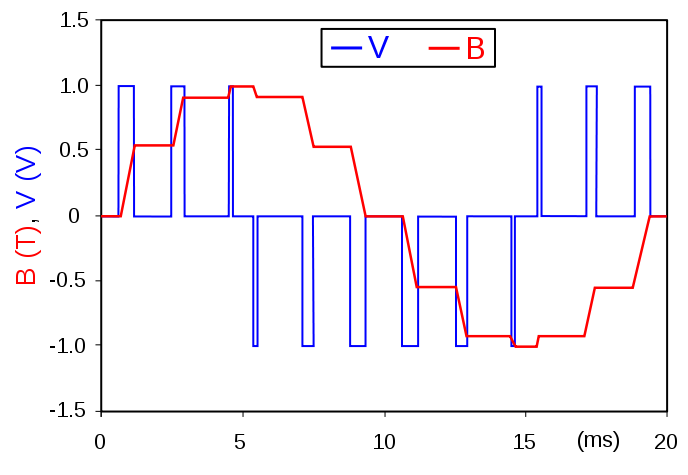
Pulse Width Modulation (PWM): PWM refers to the way in which microcontrollers, such as the Arduino, are able to emulate analog output via digital pins. This process entails sending electric currents that alternate between on and off in varying intervals to match the appropriate analog output level. Here is a link to a more in-depth description from wikipedia (image below taken from wikipedia post on this topic).

It is important to note that PWM needs to be calibrated based on the component that it is being used to control. For example, if we attach a motor to a PWM output then we need to calibrate the output setting to take into consideration the amount of time required to activate the motor.

Working with Complex Circuits: When creating complex circuits analyze each sub-circuit individually before trying to understand the overall circuit. Understanding the sub-circuits will enable you to understand the larger circuit that they create together.

Measuring Electricity Lab

Last Friday I completed this week's lab for Physical Computing. The objective of our assignment was to familiarize ourselves with how to use a multimeter to measure voltage, current, and continuity.

To prepare for this lab I set-up the breadboard so that it could be connected directly to a power source. This required that I set-up a voltage regulator to convert the 15v generated from the AC/DC converter to 5v. This was actually the hardest part of the lab for me because at first I was using another component that looked just like the voltage regulator. After almost burning my finger on the over-heated component (and enlarging a few of the wholes in my breadboard), I was able to get the breadboard set-up properly.

The video below captures the various voltage and current measurements that I executed. As expected, when we measured voltage the values across different components in the circuit always added up close to the full 5v. From a current perspective, we were able to verify that current is consistent throughout a circuit except in areas where there is a parallel circuit (in these instances the current is divided between the parallel components/paths).

Monday, September 28, 2009

Arduino Tic Tac Toe

This weekend I spend some time building a simple game of tic tac toe using an Arduino and a variety of simple components, both analog and digital. Here is a video that takes you through the process of creating this game. Below you will find the code that I used to program the Arduino. I have left all comments in the code so that you understand how it is built. I am sure there are many ways that this code can be improved and/or streamlined.


Tic Tac Toe Code
// setting a variable to pin number 13
int tictacPins [] = {2,3,4,5,6,7,8,9,10,11};     // holds pin location of each LED (including the active user one at 0)
int userPin = 0;                                 // holds the location on the array where the active user is displayed
int winnerPin = 13;                               // holds the location on the array wher the winnerPin is located
int buttonPin = 12;                              // holds number of pin for button input
int potPin = 0;                                  // holds number of pin for the potentionmeter

int potRead = 0;                                 // holds the pot value
int potRange = 0;                                // holds the value of the pot range to go from one LED to the next
int activeUser = 1;                              // holds the active user (1 or 0)
boolean buttonState = false;                     // holds buttonState (true means it has been pressed)
int user2counter = 0;                            // holds variable to enable the active user LED to blink
int blinkStateUser2 = 1;                         // holds the current blink state for all player two LEDs
int blinnkStateSelect = 0;

long unsigned timeButton;                        // holds time variable that ensures only one button press is read at a time
long unsigned timeButtonInter = 500;             // holds the interval between button presses
long unsigned timeUserLED;                       // holds time variable that governs blinking of the LED light that is currently active (prior to being selected)
long unsigned timeUserInter = 150;               // holds the interval for the blinking of the LED lights described above
long unsigned timePlayerLED;                     // holds time variable that governs the blinking of the LED lights on the spots that were selected by player 2
long unsigned timePlayerInter = 1200;            // holds the interval for the blinking of the LED lights described above
long unsigned timeHolder;

int tempActiveLoc = 1;                           // holds number of active locations on board           
int activeLoc = 1;                               // holds current LED selected 
int availableLoc = 9;                            // holds number of available locations
boolean locState [] = {true, false, false, false, false, false, false, false, false, false};              // holds current state of each location board - true = taken; false = available
boolean user1select [] = {false, false, false, false, false, false, false, false, false, false};          // holds current state of board for player 1 - true = taken by player 1; false = not taken by player 1
boolean user2select [] = {false, false, false, false, false, false, false, false, false, false};          // holds current state of board for player 2 - true = taken by player 2; false = not taken by player 2
boolean gameStatus = true;                       // holds whether game is active or over
int gameWinner = 0;


// set-up the output pin where LED will be attached

void setup()   {           
  for (int counter = 0; counter <= 9;  counter++) {                  // counter to set pinMode for all tic tact toe board pins (and active user pin)
    pinMode(tictacPins[counter], OUTPUT);                            // setting each pin as output
  } 
  pinMode(winnerPin, OUTPUT);                                        // set win notification pin as output
  pinMode(buttonPin, INPUT);                                         // set button switch as input
  resetGame();                                                       // call reset game function to initialize the game
}

// the loop() method runs continuously
void loop()                     
{
  setAvailableLoc();                                         
  blinkCounters();
  setUser();
  browsePin();
  setButtonState();
  selectPin();
  displaySelect();
  displayUserStatus();
  displayGame();
  checkWin();
} 

// function that reads if the button has been pressed. Then it sets buttonState to true if button was pressed
void setButtonState() {
  if (millis() - timeButton > timeButtonInter) {
    if (digitalRead(buttonPin) == HIGH) {                                               // if the button is pressed
        buttonState = true;                                                             // set buttonState to true
        timeButton = millis();                                                          // record that time when button was pressed
    }
  }
}

// function to set counter for player 2 pins to blink properly

// function that changes the active user if button has been pressed (e.g. player has made a selection
// function also calls setUser2PinState function to set counter for blinking player 2 lights
void setUser() {
    if (buttonState == true && activeUser == 1) {      // if button has been pressed and active user is 0    
        activeUser = 2;                                // set active user to 1
        buttonState = false;                           // set button state to false 
      }
    else if (buttonState == true && activeUser == 2) { // if button has been pressed and active user is 1     
        activeUser = 1;                                // set active user to 0
        buttonState = false;                           // set button state to false
    }
}

// function regulates the blinking of the user status pin based on what user is currently active
void displayUserStatus () {
  if (gameWinner == 0) {                                 // confirm that no one has won the game
    displayPin(userPin, activeUser);                     // calls displayPin function with to change state of userPin to currect active user
  } else {
    if (gameWinner == 1) {                              // check if user 1 won
      displayPin(userPin, 1);                           // calls displayPin function to show the winner if user 1
    } else if (gameWinner == 2) {                       // check is user 2 won
      displayPin(userPin, 2);                           // calls displayPin function to show the winner ifuser 2
    }
  }
}

// function that governs the activity of each selected pin based on whether it is a user 1 or user 2 pin
void displayPin (int tempPin, int tempUser) {
  if (tempUser == 1) {                                     // checks if current user is user 1 (0)
    digitalWrite(tictacPins[tempPin], HIGH);               // if it is user 1 then turn on the pin pin 
  } else if (tempUser == 2) { 
    if (blinkStateUser2 == 1) {                            // checks if current user is user 2 (1)
      digitalWrite(tictacPins[tempPin], HIGH);             // turn on the pin
    }  
    if (blinkStateUser2 == 2) {                            // check counter number if equal to one
      digitalWrite(tictacPins[tempPin], LOW);              // turn off the pin
    }
  }
}

// counter function that governs the blinking of all user 2 lights
void blinkCounters () {   
    if (millis() - timePlayerLED < timePlayerInter/2) {                    // checks if enough time has elapsed sine light was turned on
       blinkStateUser2 = 1;                                                // keeps the light on until the time has exceed a given interval
     }  else if (millis() - timePlayerLED > timePlayerInter/2) {           // once interval has passed
       blinkStateUser2 = 2;                                                // set light off by change blink state to two
     }       
    if (millis() - timePlayerLED > timePlayerInter) {                      // once a full cycle has passed of turning the light on and off
      timePlayerLED = millis();                                            // reset the time tracker for the next loop
    }
}

// function that displays the game
void displayGame () {
    if (gameWinner == 1 || gameWinner == 2) {                            // if the game has been won be either player
      digitalWrite(winnerPin, HIGH);                                     // turn on green LED
      displayPin(userPin, gameWinner);                                   // display the winner's blink pattern on user LED
    } else {                                                             // if the game has not been won
      digitalWrite(winnerPin, LOW);                                      // keep green LED off
    }     
    for (int counter = 1; counter <= 9; counter++) {                     // loop through each location on the tic tac toe board
      if (locState[counter] == true) {                                   // if location has been selected/taken
        if (user1select[counter] == true) {                              // check if player one has taken this location
           displayPin(counter, 1);                                       // turn on LED to denote space taken by player 1
        } else if (user2select[counter] == true) {                       // check if player 2 has taken this location
          displayPin(counter, 2);                                        // blink LED to denote space taken by player 2
        }
      }
    }
}

// function that re-initialized the game once someone has won
void resetGame() {
  potRead = 0;                                         // holds the pot value
  potRange = 0;                                        // holds the value of the pot range to go from one LED to the next
  activeUser = 1;                                      // holds the active user (1 or 0)
  buttonState = false;                                 // holds buttonState (true means it has been pressed)
  user2counter = 0;                                    // holds variable to enable the active user LED to blink
  tempActiveLoc = 1;                                   // holds number of active locations on board           
  activeLoc = 1;                                       // holds current LED selected 
  availableLoc = 9;                                    // holds number of available locations
  gameStatus = true;                                   // holds whether game is active or over
  gameWinner = 0;
  timeButton = millis();
  timeUserLED = millis();
  timePlayerLED = millis();
  for (int counter = 1; counter <= 9; counter++) {                // loop to set all initialize all arrays and turn off all LEDs on tic tact toe board
     locState [counter] = false;                                  // reset locState array
     user1select [counter] = false;                               // reset user 1 location array
     user2select [counter] = false;                               // reset user 2 location array
     digitalWrite(tictacPins [counter], LOW);                     // turn off all LEDs on tic tac toe board
     
  }
  
}


// function that makes the current selected pin blink on and off
void displaySelect() {  
  if (availableLoc != 0 && gameWinner == 0) {                        // if there is a space available on the tic tac toe board and no winner
    if ((millis() - timeUserLED) > (timeUserInter)) {                // if sufficient has passed since the beggining of the last cycle
      digitalWrite(tictacPins[activeLoc], HIGH);                     // turn on the selected LED
      delay (150);                                                   // wait for 150 milliseconds
      digitalWrite(tictacPins[activeLoc], LOW);                      // turn off the LED lights
      timeUserLED = millis();                                        // reset cycle start time
      }
  }
}


// function that reads the potentiometer and uses this information to select a pin
void browsePin () {
  int openLoc = 0;                                            // variable that holds how many open locations have been found in the array

  potRead = analogRead(potPin);                               // read the potentionmeter
  tempActiveLoc = map (potRead, 0, 1024, 1, availableLoc+1);  // set the size of the range
  
  for (int counter = 1; counter <= 9; counter++) {            // loop to identify current pin based on number of available pins and range 
    if(locState[counter] == false) {                          // if the pin has not been selected yet 
     openLoc++;                                               // then add 1 to openLoc
    }
    if (openLoc == tempActiveLoc) {                           // if openLoc is equal to tempActiveLoc
      activeLoc = counter;                                    // then make activeLoc equal to counter 
      openLoc++;
   }  
  }
}
  
// identifies the number of available locations on the board
int setAvailableLoc () {
  availableLoc = 0;                                          // initialize the availableLoc to 0
  for (int counter = 1; counter <= 9 ; counter++) {          // loop from 1 to 9
    if (locState[counter] == false) {                        // if the location is set to false (e.g. not yet selected)
       availableLoc = availableLoc + 1;                      // add one to the availableLoc variable 
    }
  }
}

// function that enables a user to select a pin
void selectPin () {
  if (gameWinner == 0) {                                      // check if the game has been won, if it has not then
    if (buttonState == true && activeUser == 1) {             // if the button has been pressed and the active user is 1
      locState[activeLoc] = true;                             // set the current location to taken
      user1select[activeLoc] = true;                          // register the location as selected by user 1
    } else if (buttonState == true && activeUser == 2) {      // if the button has been pressed and the active user is 2
      locState[activeLoc] = true;                             // set the current location to taken
      user2select[activeLoc] = true;                          // register the location as selected by user 2
    } 
  } else if (gameWinner == 1 || gameWinner == 2) {            // if game has been won
      if (buttonState == true) {                              // and if button has been pressed
        resetGame();                                          // reset the game
      }
  }
}

// function that confirms whether either player has won the game
void checkWin() {
  
  // check to see if player one won
  if ((user1select[1] == true) && (user1select[2] == true) && (user1select[3] == true)) {
        gameWinner = 1;
  } else if ((user1select[1] == true) && (user1select[4] == true) && (user1select[7] == true)) {
        gameWinner = 1;
  } else if ((user1select[1] == true) && (user1select[5] == true) && (user1select[9] == true)) { 
        gameWinner = 1;
  } else if ((user1select[2] == true) && (user1select[5] == true) && (user1select[8] == true)) {
        gameWinner = 1;
  } else if ((user1select[9] == true) && (user1select[3] == true) && (user1select[6] == true)) {
        gameWinner = 1;
  } else if ((user1select[9] == true) && (user1select[7] == true) && (user1select[8] == true)) {
        gameWinner = 1;
  } else if ((user1select[7] == true) && (user1select[5] == true) && (user1select[3] == true)) {
        gameWinner = 1;
  } else if ((user1select[4] == true) && (user1select[5] == true) && (user1select[6] == true)) {
        gameWinner = 1;
  } 

  // check to see if player two won
  if ((user2select[1] == true) && (user2select[2] == true) && (user2select[3] == true)) {
        gameWinner = 2;
  } else if ((user2select[1] == true) && (user2select[4] == true) && (user2select[7] == true)) {
        gameWinner = 2;
  } else if ((user2select[1] == true) && (user2select[5] == true) && (user2select[9] == true)) { 
        gameWinner = 2;
  } else if ((user2select[2] == true) && (user2select[5] == true) && (user2select[8] == true)) {
        gameWinner = 2;
  } else if ((user2select[9] == true) && (user2select[3] == true) && (user2select[6] == true)) {
        gameWinner = 2;
  } else if ((user2select[9] == true) && (user2select[7] == true) && (user2select[8] == true)) {
        gameWinner = 2;
  } else if ((user2select[7] == true) && (user2select[5] == true) && (user2select[3] == true)) {
        gameWinner = 2;
  } else if ((user2select[4] == true) && (user2select[5] == true) && (user2select[6] == true)) {
        gameWinner = 2;
  } 

}
 

Thoughts on The Machine Stops by E.M. Forster

I thoroughly enjoyed the short story The Machine Stops, by E.M. Forster. This tale tells the story about a future world where everyone lives a life secluded in private cells, all communications are mediated through a machine, all human needs are satisfied through this same machine, and first-hand experience of anything and everything is frowned down upon. Similar to the world depicted in Orwell's classic 1984, humans in this world live like slaves though most choose not to recognize this reality.

The main sentiment Forster echoes in this short story is the fear that through technology we may loose our humanity (or in other word, technology may ultimately dehumanize our society). In The Machine Stops, the machine, rather than man, has become the measure for all things. Human beings have been relegated to lives without any direct contact with nature or one another. Original thought and experience are looked down upon, since they are not confined to the conventions upon which the machine is built.

Before I delve any further into Forster's story, it is important for me to define what I think he means by technology. In one of my classes at ITP someone posited that we (as in humans) considered technology to be anything that was developed after we passed our early teenage years. Though this explanation is practical when talking to a younger person about devices such as computers and cellphones, it is not nearly broad enough. Technology ultimately refers to the making of things - that is why written language is a technology and so is religion, democracy, the wheel, man-made fire, books, bicycles, and of course iPhones.

One very interesting, and prescient element, about this story is how humans choose to imprison themselves by this machine of their own making. This contrasts with many more modern sci-fi stories - e.g. terminator and the matrix - where the machines gain consciousness and rise up against humans. This idea of humans choosing to imprison themselves is fascinating, especially when you view the many layers of technology through which we already mediate our experience of the world.

It brings to my mind how even the technology of language, especially when complemented by writing, often functions as lens through which humans experience the world rather than a set of tools to describe our experiences. As pointed out in Ong's reading from last week, the birth of written language gave rise to much fear (as has the rise of computers in our modern age). In the end it was ironic how the people who were best able to verbalize their fearful emotions about the new technology of written language, embraced written language in their attempts to make cases against it.

The many conventions that we have created in language and that govern our experience of the world were mostly developed in response to one person's (or many people's) experience from a long time ago. The problem is that these conventions often remain in place long after the context in which they were created has vanished. Worst yet, these conventions are often held as truths that supersede a person's conflicting direct experience of the world.

In the world created by Forster, technology is in many ways a dead relic from the past that keeps us from experiencing directly the world in which we are living right now. In his book Zen and the Art of Motorcycle Maintenance, Robert M. Pirsig offers another interesting perspective on technology, and our discontents with it: the source of our discontent with technology in Western society is caused by the dualistic thought that dominates our society. "The way to solve the conflict between human values and technological needs is not to run away from technology. That's impossible. The way to resolve the conflict is to break down the barriers of dualistic thought that prevent a real understanding of what technology is-a fusion of nature and the human spirit into a new kind of creation that transcends both." (p. 284).

As such, the problem with the technological progress in Western society, and the feeling of estrangement caused by it, could be ascribed to our focus on rational and considerations and subject-object dualism (the machine-side of man) and disregard for emotional considerations and a holistic understandings, which cannot be verified analytically.

Thursday, September 24, 2009

Introduction to Computational Media - 2nd Class

Topics covered during our 2nd class:
  • Review homework and share learnings
  • Example or processing sketches for inspiration
  • Code basics and learning to make things move
Review homework and share learnings

We kicked off class by reviewing the homework from the first week. Here is an overview of the processing functions and tools were used by other people, and which I want to remember for my own applications/uses:
  • comments – there are two ways to add comments to your sketch:
// one line comments start with “//”
/* multiple line comments are bracketed by “*/” */
  • strokeWeight(weight) – sets the weight of the stroke on a line. Accepts one argument that is int or float input.
  • strokeCap(cap type) – change the style of line caps; options include SQUARE, ROUND, and PROJECT.
  • shape() – allows creation of shapes by joining lines and curves together. Accepts up to five arguments – shape datatype, x-coordinate, y-coordinate, width, and height.
  • vertex() and curveVertex() – draw straight and curved lines as part of a shape. There are many arguments that can be accepted by these functions, and they work slightly different so check out the reference for details.
  • colorMode() – allows changing range of each color argument. The default setting is a range of 255 for each color argument.
Made with Processing

To provide inspiration and help the class understand the potential of Processing, we reviewed many cool applications developed with this toolset. Here are a few of the sites that we visited during class:
Code Structure

Software is structured to be able to run forever. Therefore, it is helpful to think about software in two useful and distinct parts:

The first part defines what needs to happen at the beginning. This covers to the activities that take place in the set-up section, or block, of the sketch. This section of the code only runs once during the execution of a program.

setup() {
set-up code
}

The second part focus on describing what needs to happen continuously. In processing this is the draw section, often referred to as a loop section (as in the Arduino IDE). This block of code gets executed repeatedly as long as the application is running. This is the area of the sketch where you will add code to animate your creation.

draw () {
drawing code
}

Making Things Move

One of the easiest ways of making things move is using the mouseX and mouseY variables. These two variables track the location of the mouse on a screen at any given moment. With little coding you can make a shape follow the mouse around the screen.

To make things move in processing it is important to understand the concept of double buffering, as this is the process by which the screen is rendered. This means that processing first renders the screen in RAM, then once it is fully rendered it outputs the results on the display. Therefore, each time the draw function loops the display is only refreshed once.

Variables are crucial elements of programming language and refer to data storage units that are user-defined (except for a few useful system variables such as mouseX and mousey, discussed above). There are three steps involved in using a variable:
  • Declare the variable. This is when you define the type of variable and give it a name. Common variable types include int (integer or whole number), float (decimal number), Boolean (logical value), strings (text) and arrays (groups of variables). Variables can be defined globally or locally – local variables are only available within the function in which they are defined.
  • Initialize the variable. This refers to when we assign a value to the variable. Variable initialization can happen in many places depending on the use and scope of the variable. When possible it is good practice to initialize global variables in the set-up function. That said, global variables can also be initialized where they are declared.
  • Use the variable: There is no point to creating a variable if you are not going to use it. Now you can write the code that leverages the variable for your own purposes.
Conditionals are very important tools for adding movement and interactivity into a sketch. These functions enable the application to choose between alternate actions according to parameters that you define. They are always based on Boolean expressions, which are logical expressions that resolve to either true of false. Based on these logical expressions a block of code is either be executed or not. Note that it is usually good practice to separate the code written for logic and that written for drawing to screen (this is not always possible though).

When you start adding complexity to your sketch it is important to learn how to use debugging tools and strategies as these will save much hair pulling and potentially worse behavior. println() is one such function that enables the program to output information in the processing IDE (on the screen below the sketch code). The information visible through println() is only visible to the programmer.

Assignments

Start introducing some types of variables into your work so that it can be animated in some way. I have already done this assignment, here is a link to my blog post about it.

Miscellaneous
  • Tiny sketch competition going on from Rhizome. Build app with 200 characters or less. Check it out. Available on http://openprocessing.org website.
  • Class next semester about modeling natural systems and physics in processing. Talk to Dan about this class.
  • For data visualization books and examples built with processing look at Ben Fry’s data visualization books as a starting point.

Fangs is Back - Assignment for 2nd Week of ICM

For the second week of ICM we were tasked with creating a sketch that animates by leveraging conditional and loop statements, together with variables. I took this a few steps further by incorporating arrays, functions, objects, and (and even a photosensor computing sensor).

Though I had no experience writing software using an object oriented language, I had a theoretical understanding of this type of structure. In high school (longer ago then I care to remember), I wrote a paper about the principles of object oriented programming (OOP). This was during my senior year. I was happy to finally truly understand the power of this type of programming.

The latest version of the fangs sketch has the following features: a bat pointer follows the mouse around the screen. When that mouse button is pressed new bats are created. The right and left arrow keys enable the user to rotate the bats in either direction (though this feature is still not working perfectly). The eyes of the bats move around so that they are always looking towards the center. Finally, I created a sleep mode were all the bats perch themselves at the top of the window. The up and down buttons enable the user to enter and exit the sleep mode.


I encountered a lot of challenges when working on this project.

To be able to replicate the bats I defined a bat class that encapsulate all the attributes and behavior of the bat. Then I wrote code that creates individual instances of bats that are dynamically added to an array of bats (so that they can be easily managed). The bat class includes many methods/functions, including ones that randomly move the bat or move bat according to specific coordinates, that rotate bats in either direction, that transition bats into sleep mode, and that display all the bats.

To rotate the bats I had to learn how to use the pop/pushMatrix, translation, and rotation functions. This was one of the hardest obstacles I faced during the development of this sketch. However, once I learned how to use these capabilities I rewrote a lot of the code so that I could use them for all bat movements within my sketch (originally I considered using to pull of the rotation only).

The last tough challenge I had to overcome was associated to the sleep mode. Getting the bats to rotate properly and stop at the right location and rotation took some work. Originally I had planned to create only two states to govern this transition (sleep, awake), however, I realized that I need to create a third state (launch) so that the bats could properly rotate back to being right side up. I also had to find a solution to make the bats eyes closed once they had reached the top.

Check out my code on the openprocessing website. Let me know if you have any questions.

Wednesday, September 23, 2009

30 Minute Film Festival & 42 Seconds

Here is the one minute short video that I created with Patricia, Lisa, and Eric for Comm Lab. Our challenge was to make movie from ideation through final cut in 30 minutes (ok maybe it was more like 40 minutes). Here is the fruit of our labor:


We had a great time putting this movie together, not to say that we didn't feel any stress as that was a key part of the challenge. Our process started with an open brainstorm session that focused on creating a list of individual words. Once we captured 40 words we reviewed them to pick out a few words or themes with which to build a story. This is what made it to the top of the list: car, racing, accident, hurt, 42 seconds.

Through conversation and negotiation we quickly reached an agreement on the overall storyline and began making a list of shots we needed. We then sprinted downstairs to shoot the footage. Then raced back upstairs to edit the movie. We were done just in the nick of time.

Analog Input Lab

Yesterday I set-up an analog input on the Arduino for the first time. I am happy to report that I did not encounter any major issues. The only roadblock was my own carelessness which caused me to initially connect the cables incorrectly.

The video below includes highlights from my set-up of a potentiometer and a photosensor. In both cases I used the analog switch to control the brightness of the LED light attached to the board.

The Memory Machine

The Memory Machine is a device that continuosly records locations, sights, sounds and smells. It then stores this information for a period of 72 hours.

The Memory Machine is controlled via gestures and a portable control device. Users can also access information using an application on a desktop/laptop computer. All information is time- and location-coded to facilitate retrieval. Data captured in different media is linked.

To capture data the machine uses a camera, a microphone, an olfactory sensor (which does not currently exist, to my knowledge) and a portable control device. The slides below provide a rough overview of this fantastic machine (note that I did not include the olfactory sensor in this sketch).

Tuesday, September 22, 2009

My New York From La Guardia to George Washington

After hiding from the sun for 15 minutes in a small sliver of shade, I boarded the M5 bus on the corner of Houston and La Guardia. It is 16:08 on a beautiful and sunny Saturday afternoon. This is an ideal day to transform a ride on an MTA bus into a scenic tour of my beloved and adopted hometown, New York.

During the 15 minutes before the bus arrived I had a frantic dialogue with my iPhone to curate the playlist that will serve as the soundtrack for this journey. I have always explored this city with a soundtrack. This addiction started when I first moved to New York and was working as a DJ. During this time I became compulsive about always leaving home with my portable music player and the latest draft of my demo.

I board the bus, pay the fare and find a forward-facing seat on the left side of the aisle. I set the playlist to shuffle and press play as the bus pushes away from the curb, synchronizing the start of the first track with our departure. The soundtrack starts with the song Heartbeat, which is an energetic vocal house track by the British band the Knife. I switch my focus back to the outside world and my assignment.

Over the previous couple of days I had given much thought to this assignment: What perspective did I want to take? What tools did I need to bring? I decided that my piece would be personal, that a soundtrack would enhance the experience, and that I needed a way to capture my thoughts. The iPhone took care of items two and three while I was left with the tougher challenge of defining writing a personal account of the tour. This is what was going through my mind as the tour began.

As we reach the corner of Houston and Sullivan I notice a small Italian shop called Rafetto’s . I used to frequent this store when I lived on Thompson Street . It is one of the few businesses that have survived from the days when this little corner of SOHO was primarily a simple Italian neighborhood. More recently, the Italian businesses left in the neighborhood are mostly high-end brand shops from brands such as Dolce & Gabbana, and Prada.

We turn onto 6th Avenue and head north past one of my favorite Italian restaurants, Bellavitae , which is located on Mineta Lane off 6th. A few blocks north we pass the famous Gray’s Papaya , where I’ve consumed many hot dogs. Next I spot the location of the old Balducci’s deli , where I used to savor delicious freshly-baked amaretto cookies.

My New York Memory Map

View Memories Houston to George Washington Bridge in a larger map

For many years I walked the stretch of pavement between Spring and 23rd Streets on a daily basis. This walk, coupled with a loud dose of electronic music, functioned as the caffeine fix that kick-started my days. This is why I would subject myself to this mode of transportation in the summer, fall, winter, and spring, rain, shine, or snow.

Despite the many good memories that I have from this area of the city, the visual landscape from the area between Houston to 17th street is not very appealing. It is dominated primarily by uninspired post-war developments populated by chain restaurant and retail brands, with some notable exceptions such as the Jefferson Market Library.

The architecture between 17th and 21st streets is a sharp contrast to the preceeding and following blocks. The buildings in this small enclave were originally constructed as luxurious department stores. Like much of New York, this area fell into a state of decay for several decades until being restored to its current well-maintained state during the last 15 years.

When we arrive at the corner of 20th street I examine my old office building . I notice that the Barnes & Nobles on the ground floor has closed. The storefront, which was once filled with a colorful selection of media and the recognizable faces of colleagues of mine on break, now looked like a dark and deserted void.

It was only 6 years ago that I stopped working here. I have many memories from eating and drinking at local restaurant and bars that have been replaced by new, and usually more upscale, establishments. This is a testament to the speed of urban renewal during the last decade in New York. In contrast, the presence of a few notable unoccupied retail spaces demonstrates the impact of the current economic crisis on the city’s ability to renew itself.

Once we cross 23rd street the buildings become less memorable and my personal stories and memories are less numerous. For many years I rarely crossed the 23rd street divide, which how this area came to be known amongst my friends.

The slice of 6th Avenue between 23rd and 34th is one of its least attractive parts. New cookie-cutter residential buildings dot this stretch, which is mostly lined with drab and grey post-war buildings. Aside from a few shinny new supermarkets and coffee houses, the commerce here is dominated by Indian clothing and jewelry wholesalers, and plants retailers.

As we approach the Manhattan Mall and Macy’s the crowd on the street swells exponentially. The weekend closure of Broadway above 34th has attracted a sea of people on this beautiful day. Looking at this spectacle I am reminded of my visit to Shibuya in Tokyo earlier this summer.

I look down at my iPhone to continue capturing my stream of consciousness and realize that I may run out of battery before the end of the trip. This realization leads me to think about my dependence on energy. I wonder how much energy it takes to keep this whole city “alive”, or even just one city block. The number is too high for me to even imagine. How long can we keep this up? What changes do I need to make in my life to help our society avoid a rude awakening?

I refocus on the world outside as we head into the garment district. Here the landscape changes to taller, though still mostly drab and grey, corporate-looking office towers. The commerce in this area is mostly fashion-related, as the name of neighborhood suggests. Bryan Park provides a breadth of fresh air in this boring midtown district. I worked just a few blocks away from this small oasis and enjoyed many lunch breaks sitting on one of its grassy patches.

Our arrival at Bryant Park is synched to the opening chords of the song My Beau, this is one of my favorite tracks from an LA-based artist called Daedelus. I feel like I am in that old VW Jetta commercial where the world around the car moves in synch to the beat of the music in the car.

We cross 42nd Street and the corporate office buildings quickly morph into imposing towers that exude a sense of power. This area through 55th street is a nucleus of banks, insurance companies, law offices, and multinational corporations. From the bus, the towers seem to be looking down at me with a hard and muscular stare. I feel very small in comparison; I enjoy the feeling.

When we reach 46th Street I begin to crave delicacies from a nearby Brazilian goods store called Buzios . This small shop, hidden on the second floor of a dilapidated building, is my favorite source for cooking supplies, cheeses, chocolates, and soft drinks from Brazil. On my first visits to New York in the nineties this strip of the city was overrun by Brazilian businesses. Now, Buzios is one of the few remaining Brazilian-owned businesses in this area that is still known as little Brazil.

At 55th street the row of towers comes to an end. A mix of residences, hotels and themed eating establishments line the few remaining blocks south of the park. I lived in this area during my first six months in New York, though I have spent little time here since I moved downtown.

While following along the southern edge of Central Park my view was limited to the south side of the street. The buildings lining this edge of the park are old luxury condominiums and hotels that are all in need of a good makeover. Especially when contrasted to the city’s newest and most luxurious shopping mall complex, which is located next door in Columbus Circle.

We reach Columbus Circle and take a right onto Broadway to cut diagonally across the island. The ten blocks above the Circle are home to many New York City treasures, including Lincoln Center and one of my favorite pizzas, at Fiorello’s . Broadway is lined with high-end residential complexes and big brand name stores. The buildings are less imposing and provide more visual breathing room than the power corridor we passed on upper 6th Ave.

We take a left and head towards the Hudson on an ugly stretch of 72nd street. When we reach Riverside drive I am struck by my view of the lush park and river. This is one of the few parts of the city that I had never visited; I can’t imagine a better day to acquaint myself with it. The song “Brother Love” from Animal Collective picks up slowly providing the perfect musical accompaniment.

The side of the street opposite the park is lined with beautiful upscale residential buildings. From 72nd through 120th there are strollers and kids parading down the sidewalk. This is by far the most family-friendly street on the tour. From my vantage point, the overall aura of the neighborhood makes me feel as though I have been transported to Brooklyn Heights.

After 60 blocks of river views the bus takes 135th Street over to Broadway for the final leg of our ascent to the George Washington Bridge. The contrast between Riverside Drive and this stretch of Broadway is severe. This section of Harlem is noticeably lower income than all of the other neighborhoods we visited along our route.

Most businesses in this area are locally owned with signage primarily in Spanish, with the exception of a few fast food restaurants and cell phone provider outposts. The sights, sounds and smells of the neighborhood are strongly Hispanic. The cash checking stores, phone card vendors, and abundance of Latin restaurants and grocery shops are part of the visible support structure for to this large community of immigrants.

When we reach 165th street and are in view of the George Washington Bridge we are forced to transfer buses. I take the opportunity to soak up some sun and I start to think about what I’ve witnessed so far. A new bus arrives within five minutes, and our tour ends only a few minutes thereafter when I step off the bus across the street from the GW Bridge.

On the subway ride back home, still listening to my soundtrack, I think about the diversity that exists within the 200 city blocks that I traveled today. I enjoyed the opportunity to consciously survey the physical manifestations of this diversity in the buildings and streets of the city. I also realize how the diverse cultures and values that were manifest in the streets outside the bus, were equally reflected in the bus riders themselves. This pattern of reflection reminds me how the unparalleled diversity offered by New York is one of main reasons I call this city my home.

The Tour Playlist